
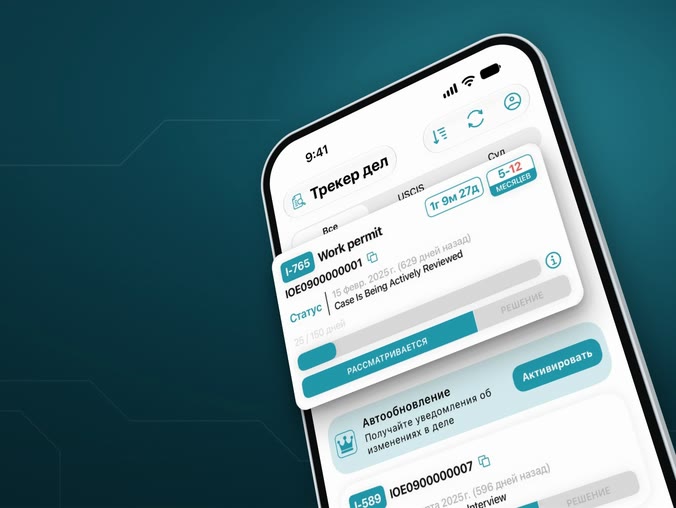
What's new in I-GUIDE: case history, notifications, support chat and widgets
The new version of I-GUIDE brings several useful features at once. Here is what they are and where to find them. To get them, update the app in the App Store or Google Play.
1. Change history for court cases
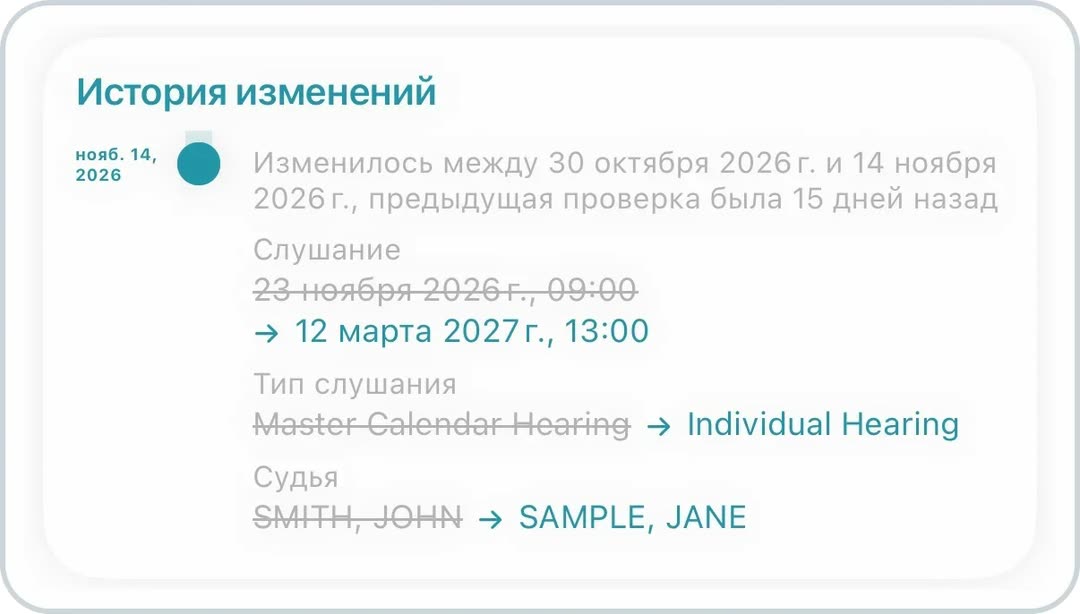
The app now remembers what changed in your immigration court (EOIR) case. Even if you forget when your hearing was moved or your judge changed, it all stays in the history.
Where to find it: «Tracker» → open your EOIR case → scroll down to «Case history».
What is saved: the hearing date and time, its type and format, the judge, the court, the decision, the appeal and the EAD clock. You can see what it was and what it became.
Important: without Premium, a change is saved at the moment you refresh the case, not when it actually happened. That is why the history may say «Changed between … and …». With Premium, cases update on their own.
2. Notification center
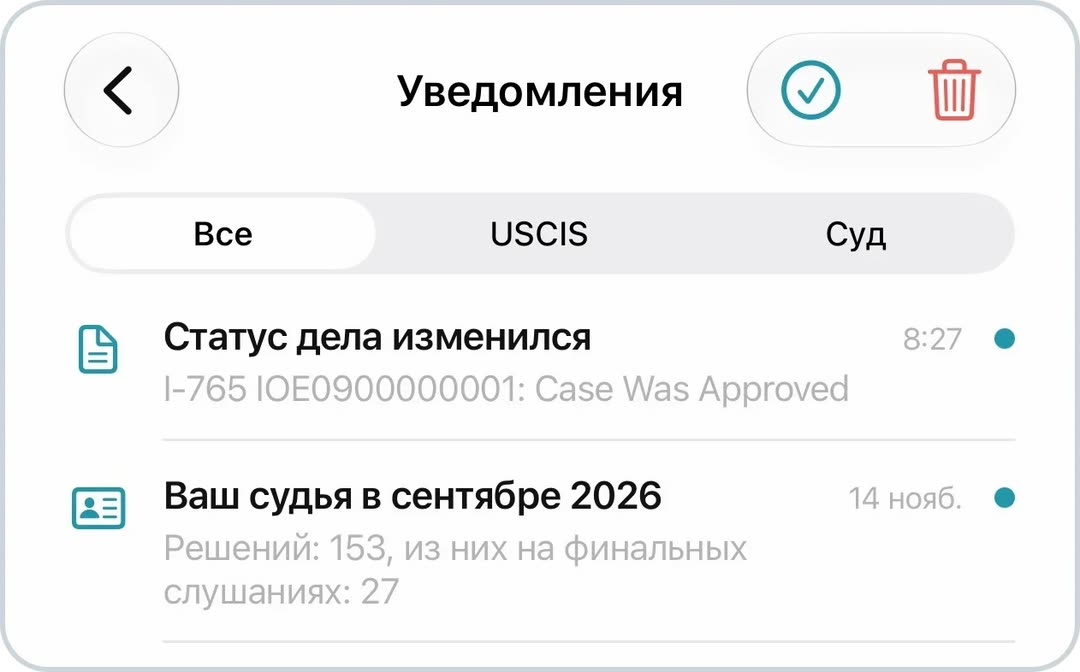
Missed a push? Swiped it away by accident? No problem — all notifications are now kept in the app.
Where to find it: «Profile» → «Notifications».
You can filter notifications (all, USCIS or court), mark them as read or delete them. Tap a notification to open what the push opened, for example your case.
3. Support chat
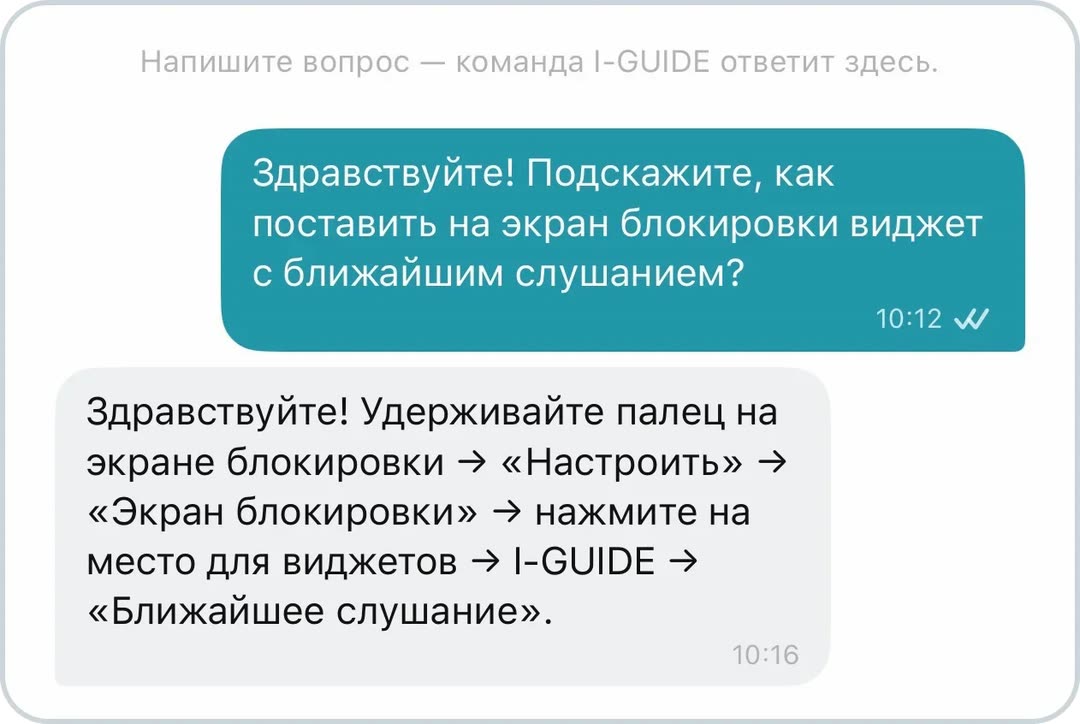
Premium users can write to us right in the app if something about how the app works is unclear: how to add a case, set up notifications or place a widget.
Where to find it: «Profile» → «Support».
Support helps with using the app. It is not legal advice.
4. Security
We have installed the latest security updates and strengthened the protection of your data. There is nothing you need to do — just update the app.
5. Widgets
Your case status, processing time and next hearing are now right on your phone screen, without opening the app.
- Case — the status and stage of your USCIS or court case.
- Processing time — how long USCIS usually takes for a case like yours.
- Estimated time — where your case stands against the usual USCIS times.
- Next hearing — the hearing date and how many days are left.
- Judge — your judge's approval rate compared with the court and the whole country.
Be sure to try the Judge widget: tap any tile and it flips over. On the back you will find approval rates with and without an attorney, and the judge's rank in their court and nationwide.
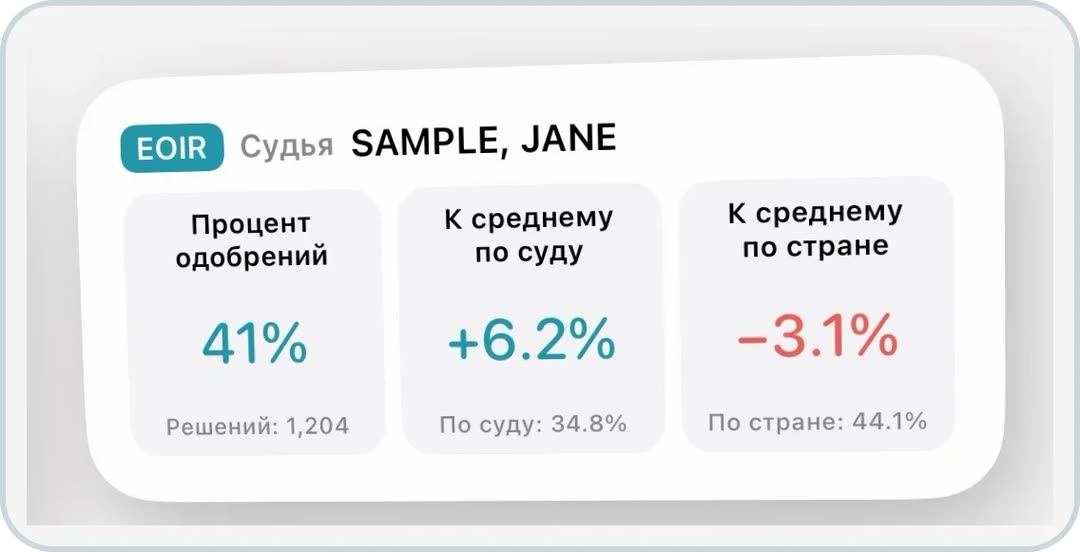
How to add a widget on iPhone:
- Touch and hold an empty area of the Home Screen.
- Choose «Add Widget» and find I-GUIDE in the list.
- Pick a widget and tap «Add Widget».
- To choose the case, touch and hold the widget → «Edit Widget».
On the Lock Screen (iPhone): touch and hold the Lock Screen → «Customize» → «Lock Screen» → tap the widget area → I-GUIDE.
On Android: touch and hold an empty area of the home screen → «Widgets» → I-GUIDE, then choose the case. On Android, widgets go on the home screen.
Bonus: the «Files» section
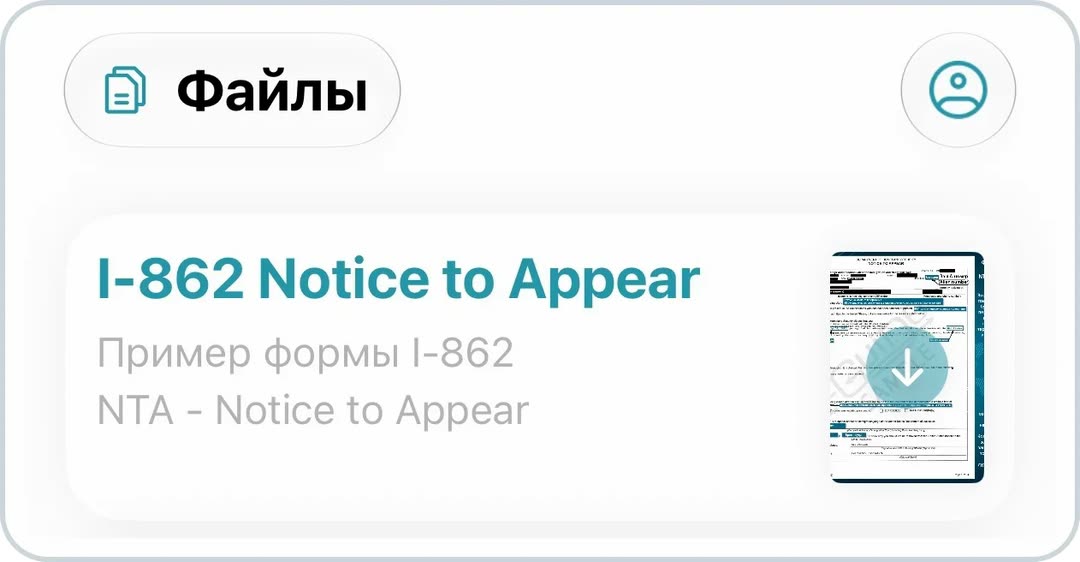
The «Files» tab collects blank forms and sample documents: forms and filled-in examples, translations, cover pages and other documents for court.
Most files are free — you only need to sign in. The rest open with Premium. The section is available in any version of the app.
Update the app